How to change LinkedIn URL on mobile & desktop: A quick step-by-step guide!
 14 minutes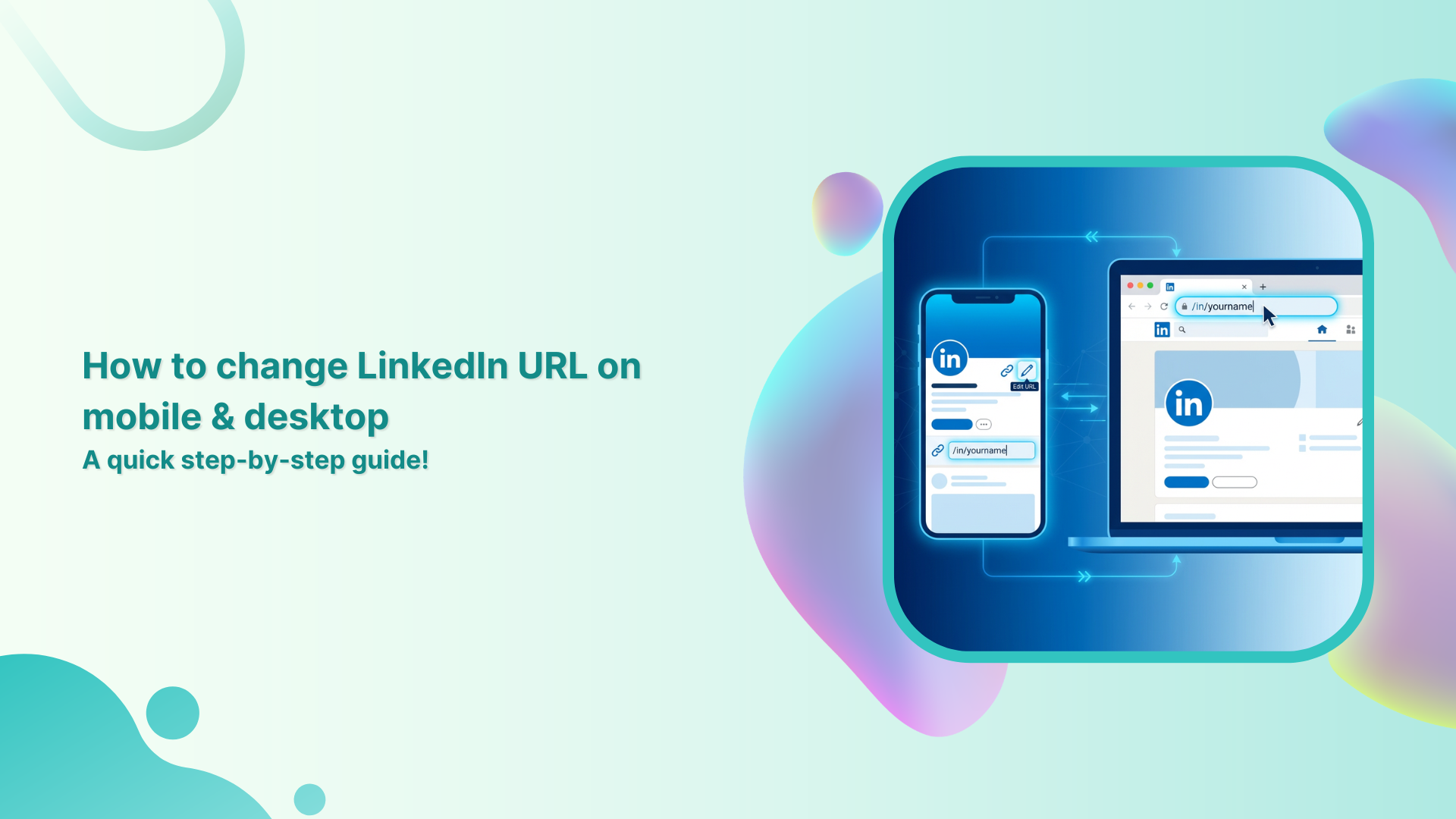
With over 1.2 billion users on LinkedIn and more than 310 million active every single month, your profile isn’t just a digital resume; it’s your first impression. And one thing most people overlook is their LinkedIn profile URL.
By default, LinkedIn hands you a messy string of random numbers and letters that looks something like linkedin.com/in/ahsan-jamal-4b3x892z. Not exactly the way you want, right?
A clean, customized URL makes you look more professional, easier to find, and way more shareable, whether you’re adding it to your resume, email signature, or business card.
The best part? It takes less than two minutes to change.
In this guide, we’ll walk you through exactly how to do it on both mobile and desktop. But first, if you’re wondering what a LinkedIn URL actually is and why it matters, let’s break that down real quick.
What is a LinkedIn URL?
A LinkedIn URL is simply the web address that leads directly to a unique LinkedIn profile. It looks something like this: linkedin.com/in/yourname.
By default, LinkedIn auto-generates this link, and it’s usually a jumbled mess of a person’s name plus a random string of numbers and characters.
The primary purpose of a LinkedIn URL is to give a unique, shareable link that people can use to find and visit a profile instantly.
Think of it as one’s personal address on LinkedIn. The cleaner it looks, the better the impression it makes.
Importance of changing your LinkedIn URL
Here’s why customizing your LinkedIn URL actually matters:
- Professionalism & personal branding: A custom URL like linkedin.com/in/ahsanjamal instantly looks more polished and intentional. It signals that you take your professional presence seriously.
- Improved searchability & SEO: When your URL includes your actual name, it’s more likely to show up when someone Googles you. This makes it easier for recruiters or clients to find you online.
- Memorability & consistency: A clean, name-based URL is much easier to remember, and it keeps your personal brand consistent across your resume, portfolio, and social profiles.
- Easy sharing on the go: No matter if you’re at a networking event or sending forth a quick email, a short and clean URL is way easier to share verbally or in writing.
- Removes clutter: Getting rid of those random numbers just makes everything look tidier on your resume, your email signature, and anywhere else you drop your LinkedIn link.
How to change LinkedIn URL on mobile
Changing your LinkedIn URL on a smartphone is pretty straightforward. It just takes a few taps, and you’re done. Follow the next steps, and you’ll have a clean, custom URL in no time.
Here’s how to change your LinkedIn URL in the mobile app:
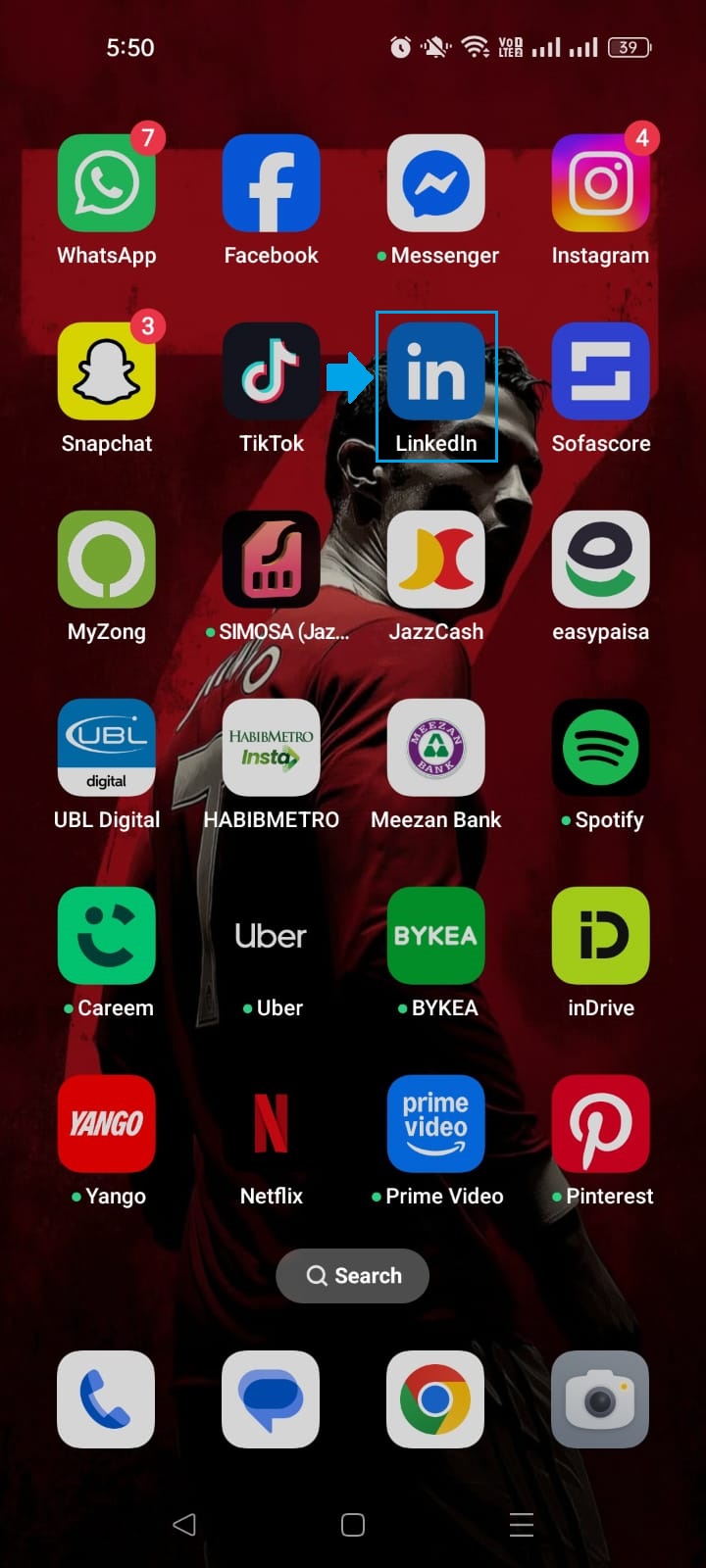
Step #01: Open the LinkedIn app
Grab your phone and launch the LinkedIn app. Make sure you’re logged into the account whose URL you want to change.
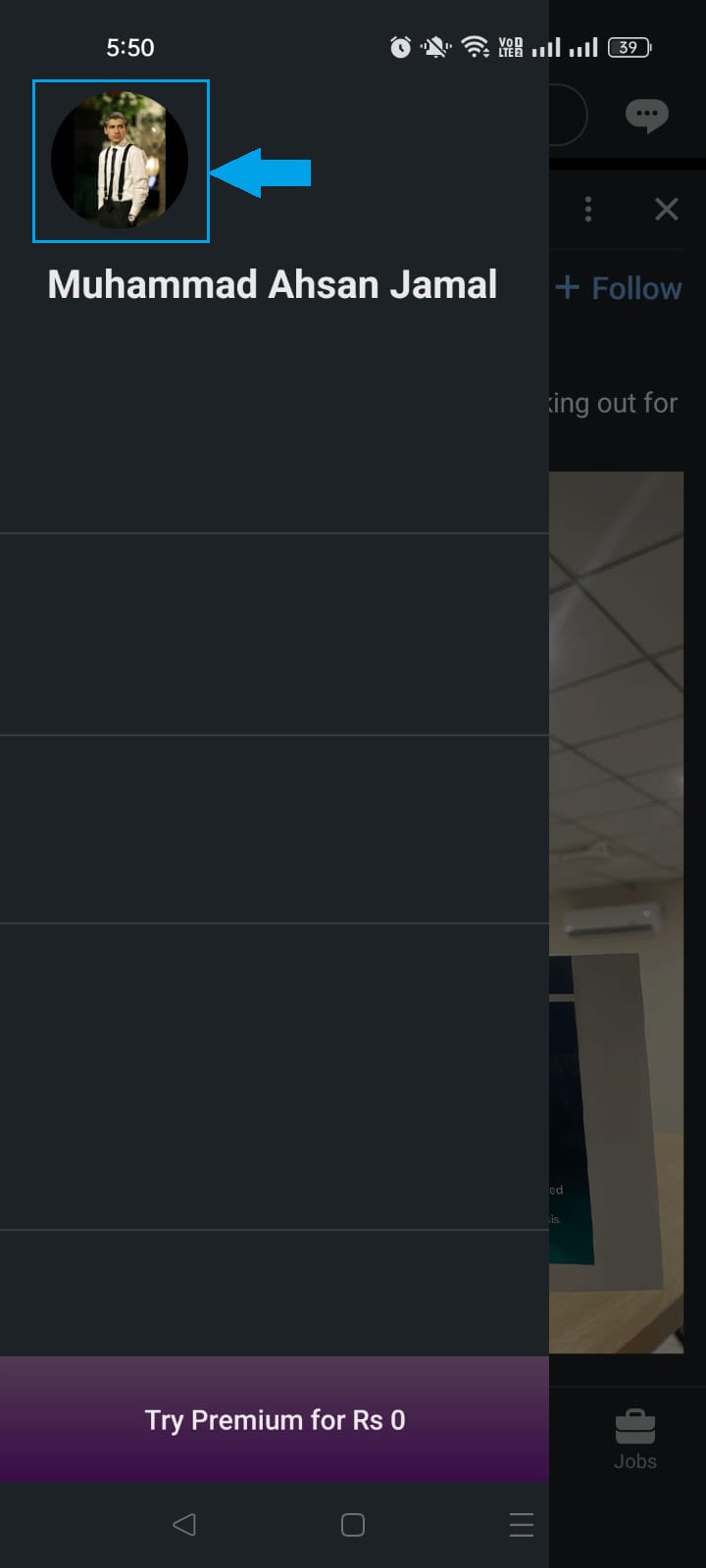
Step #02: Go to your profile
Tap on your profile picture or your name at the top of the screen to navigate to your profile page.
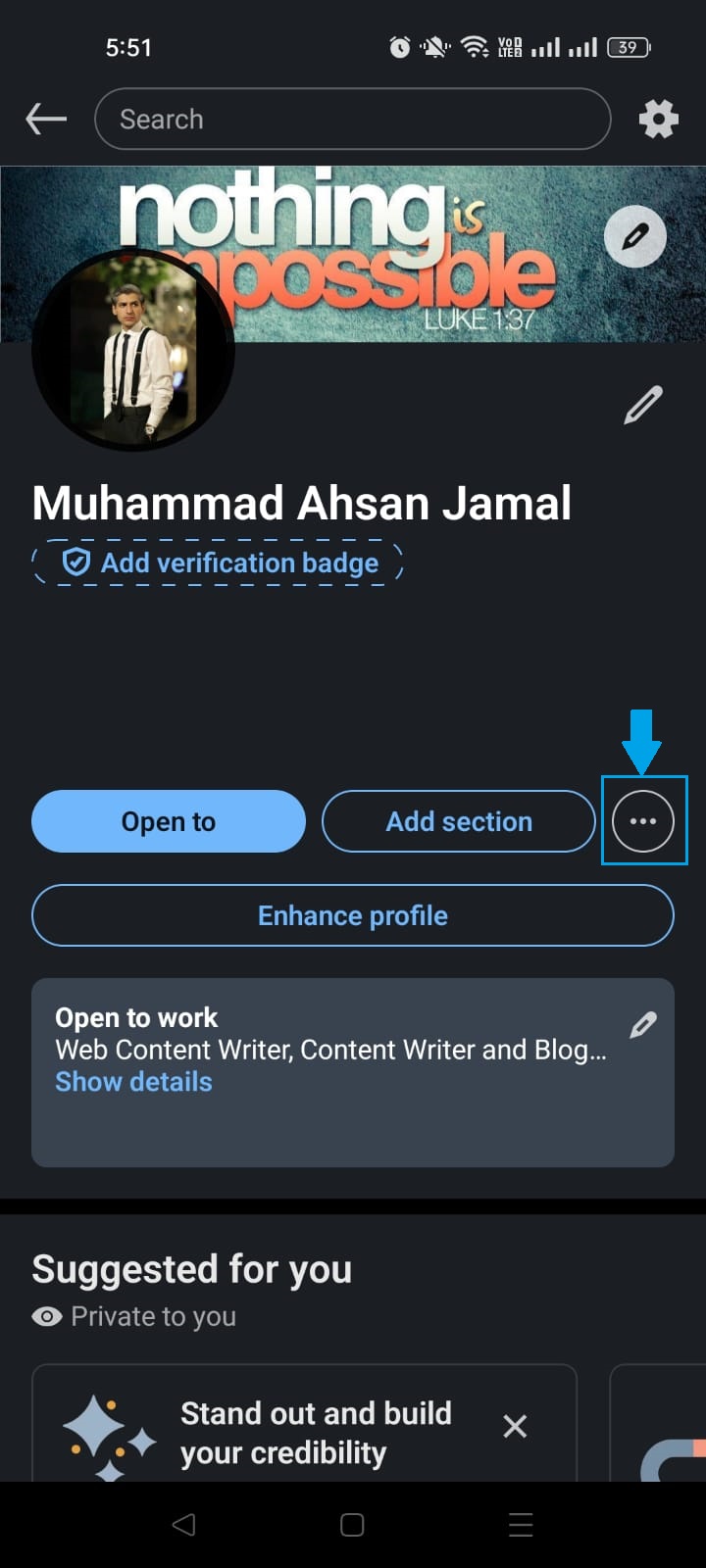
Step #03: Tap the (…) button
Once you’re on your profile, look for the three-dot (…) button and tap on it to open a list of options.
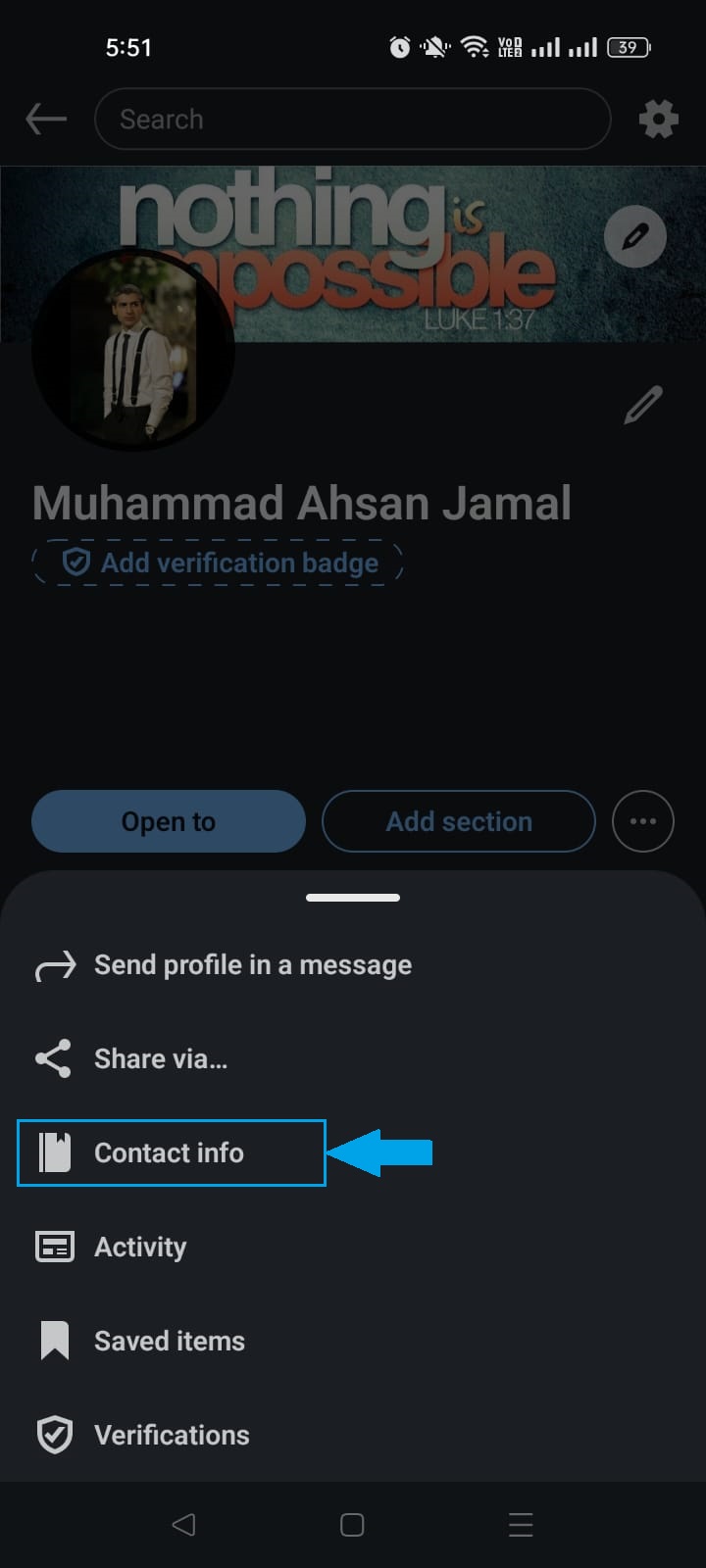
Step #04: Select “Contact info”
From the menu that appears, tap on “Contact info”. This is where LinkedIn stores your profile URL along with your other contact details.
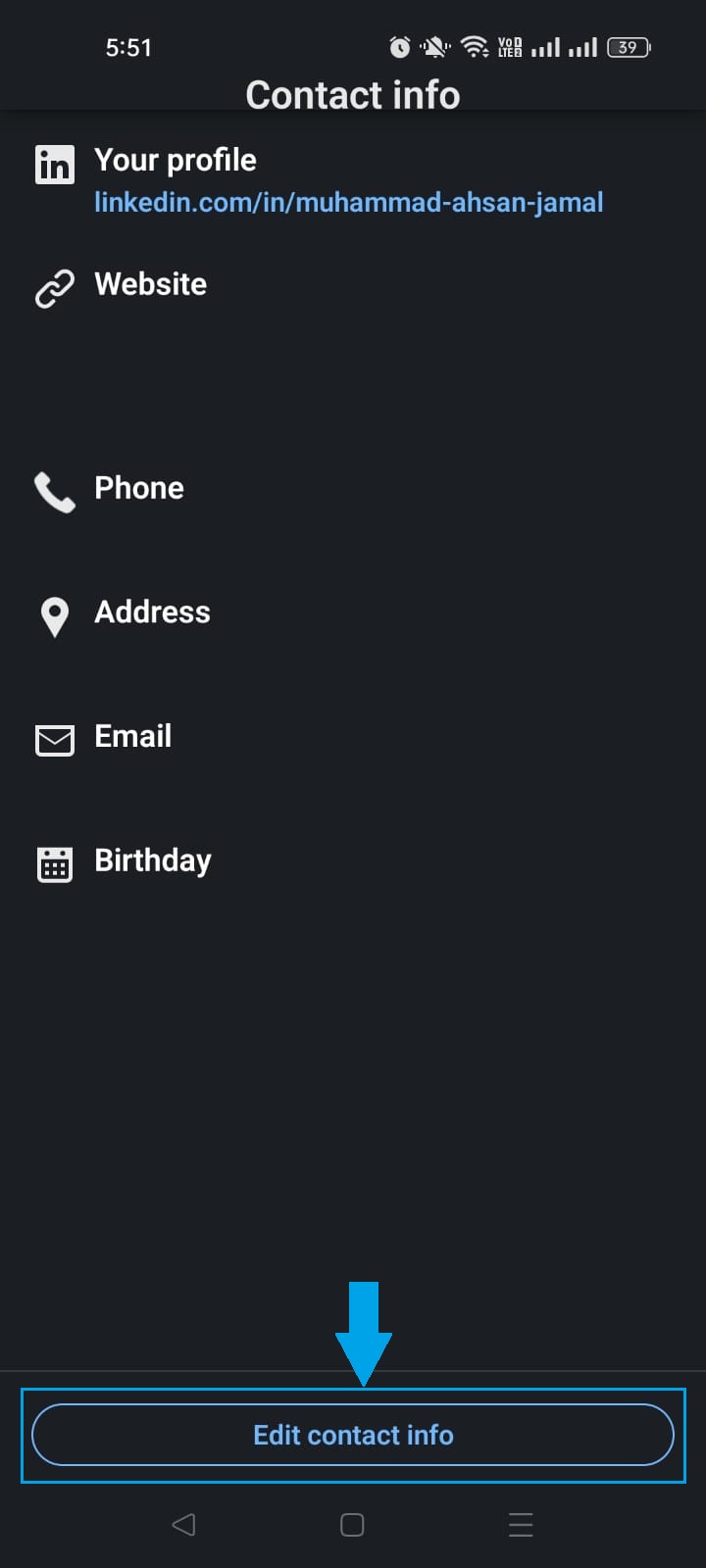
Step #05: Tap “Edit contact info” button
At the bottom of the screen, tap the “Edit contact info” button to make changes to your information.
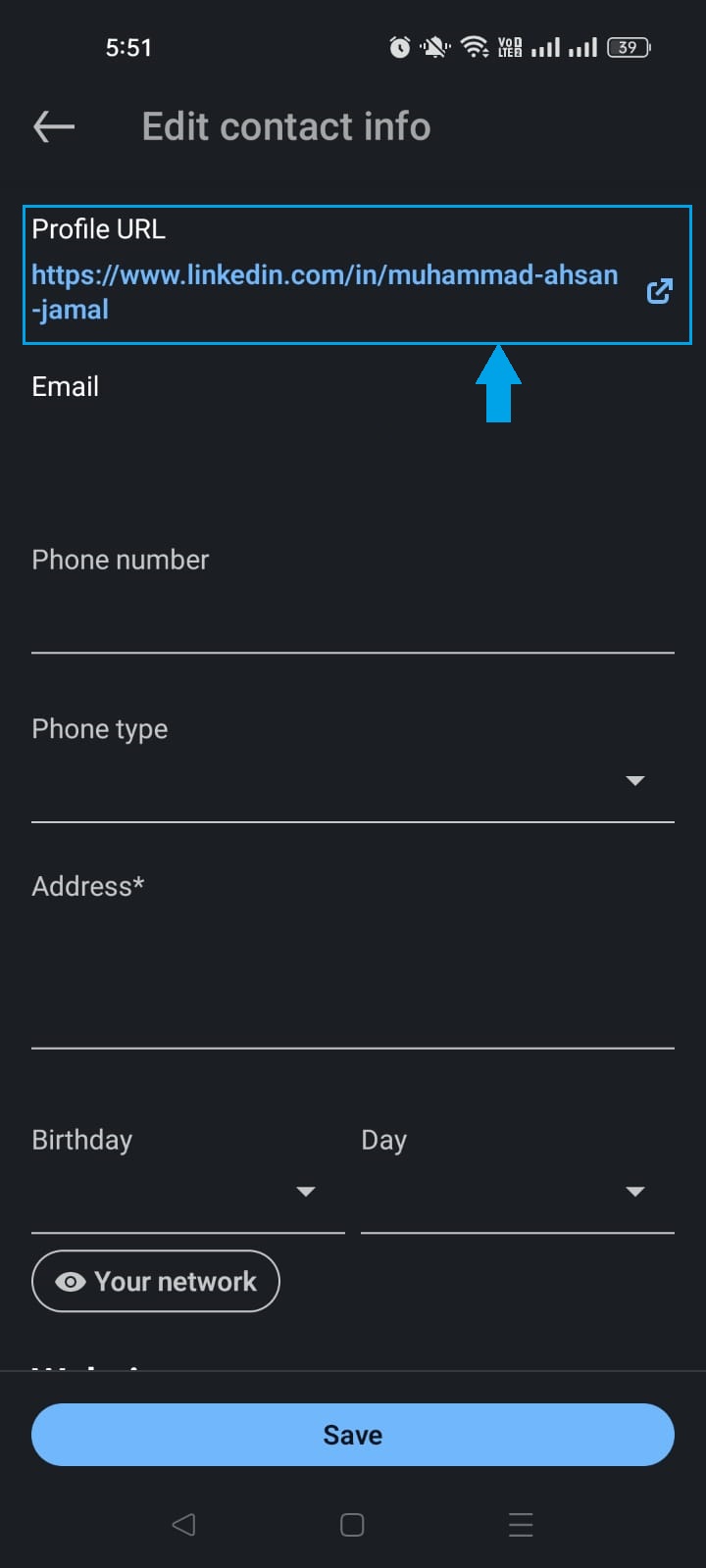
Step #06: Tap “Profile URL”
At the top of the page, you will see the “Profile URL” option. Tap on it. This will take you to the section where you can finally edit your LinkedIn URL.
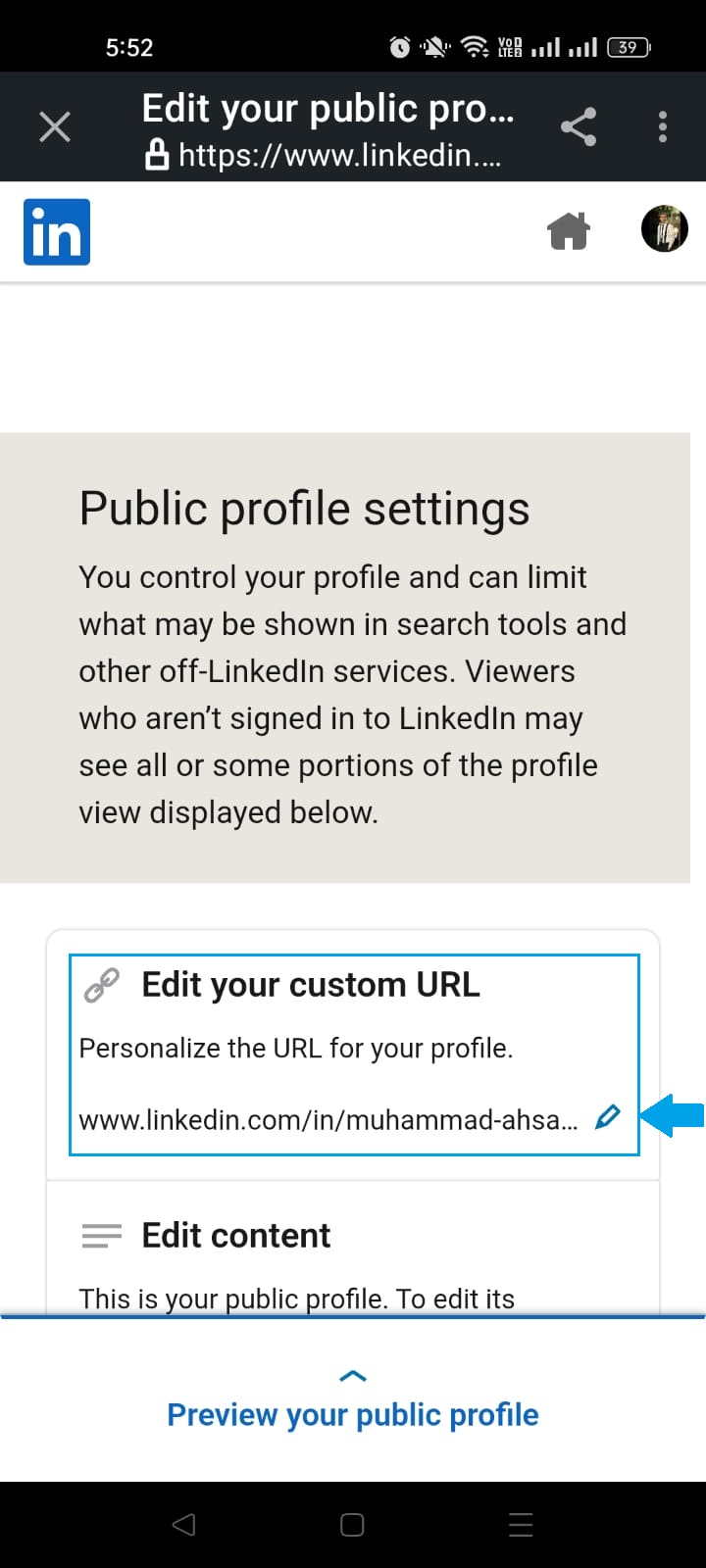
Step #07: Tap the pencil icon under “Edit your custom URL”
Tap the pencil icon next to your current URL, delete the existing string of text, and type in your new custom URL. Ideally, your name or a clean variation of it.
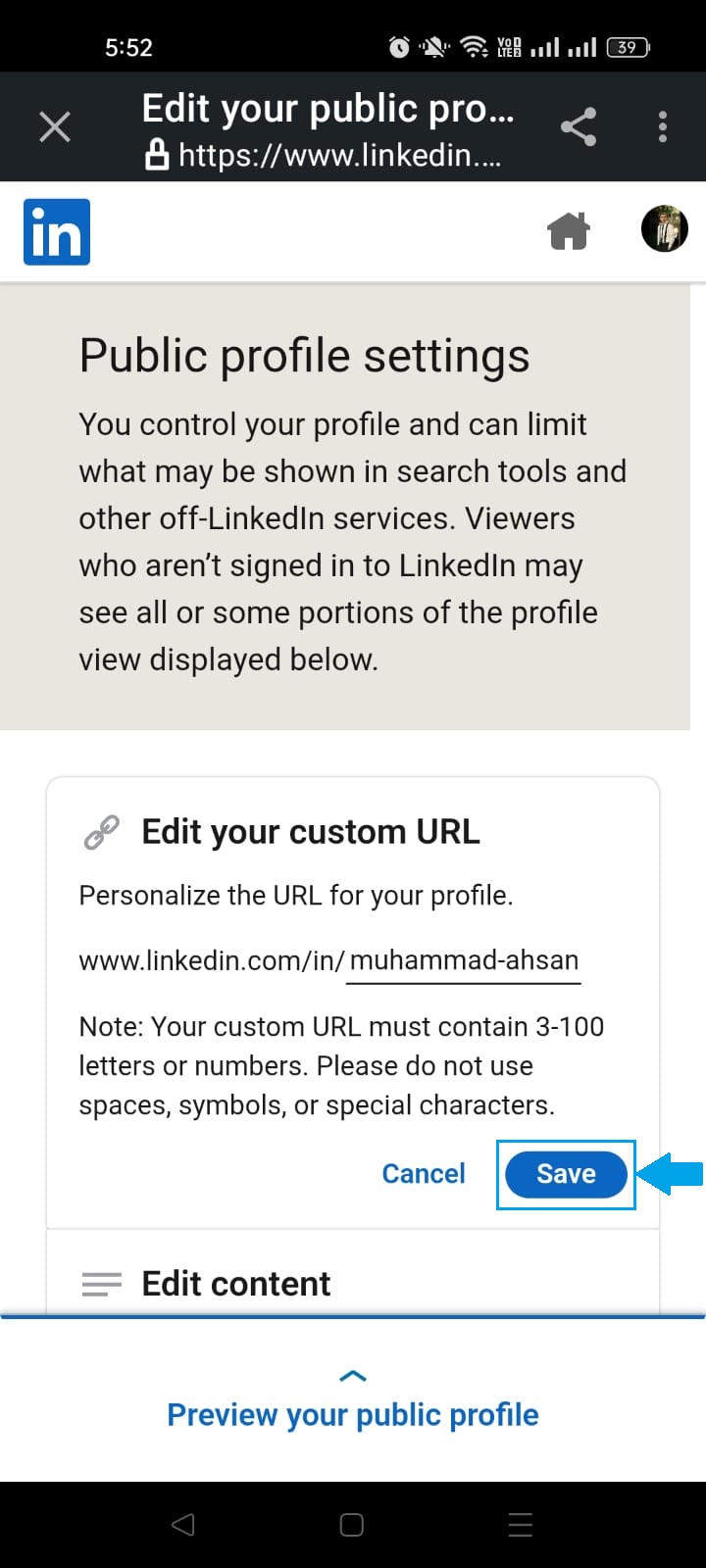
Step #08: Tap “Save”
Once you’re happy with your new URL, hit the “Save” button, and that’s it! Your custom LinkedIn URL is live and ready to share.
How to change LinkedIn URL on desktop
Prefer working on a bigger screen? No problem.
Changing your LinkedIn URL on desktop is just as simple.
Here’s how to edit a LinkedIn URL on the desktop app, step by step:
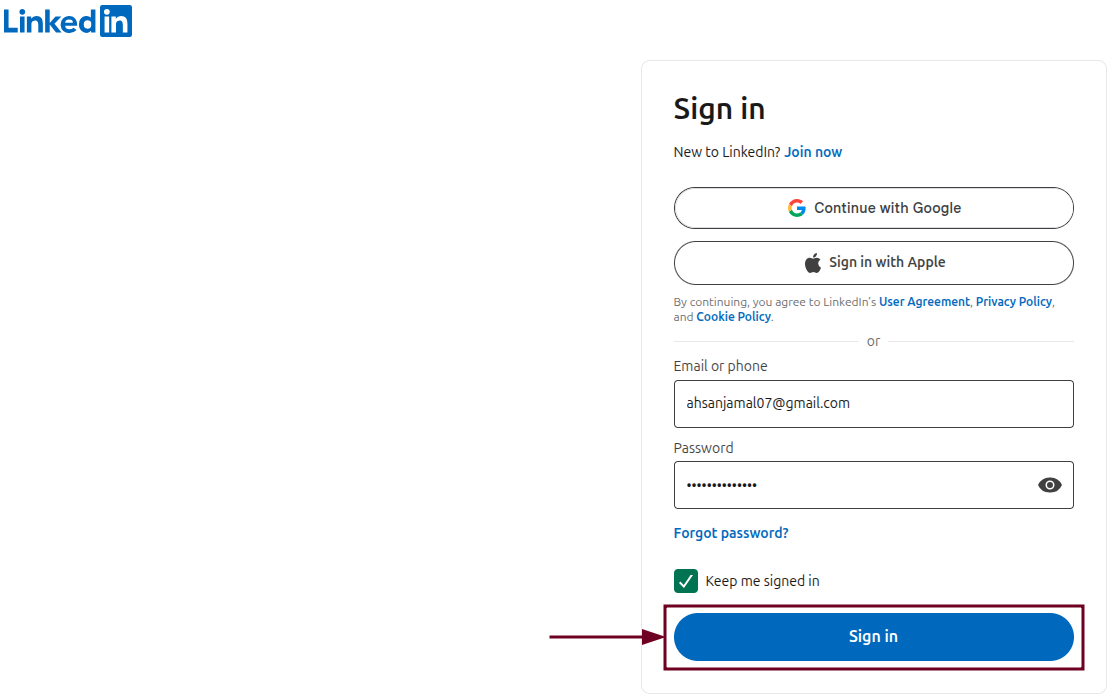
Step #01: Sign in to your LinkedIn account
Head over to linkedin.com and sign in with your email and password if you aren’t already logged in.
Step #02: Click the “Me” icon
Once you’re successfully signed in and are on the homepage, look for the “Me” icon at the top right of the navigation bar. It’s right next to the search bar. Click on it.

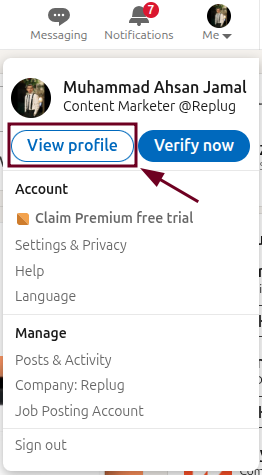
Step #03: Select “View profile”
A small dropdown menu will appear. Click on “View profile” to be taken directly to your LinkedIn profile page.
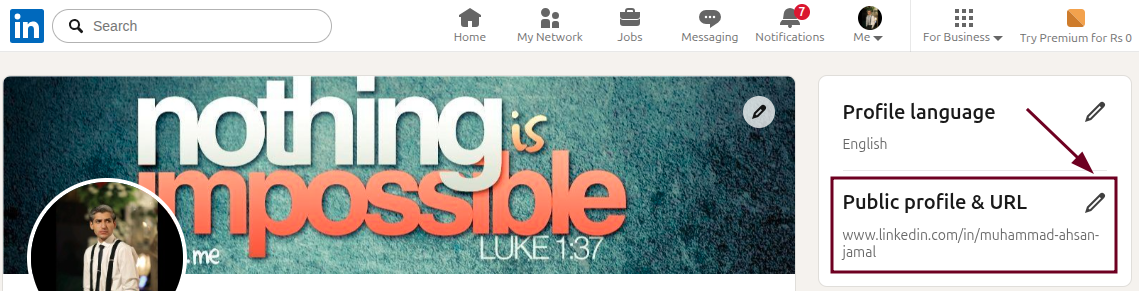
Step #04: Click the “Public profile & URL” option
On your profile page, look toward the right side of the screen and click on the pencil icon next to “Public profile & URL”. This will open your public profile settings in a new page.
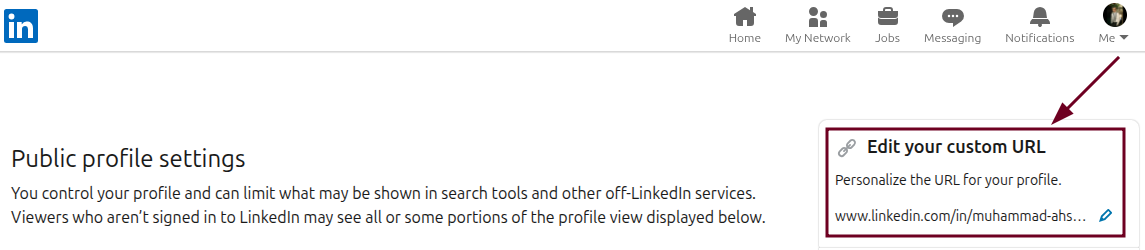
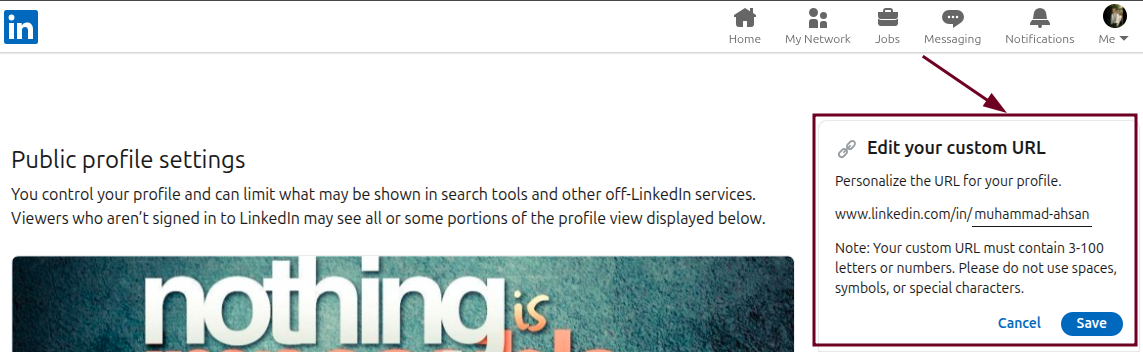
Step #05: Look for the “Edit your custom URL” section
On the right-hand side of the page, you’ll spot the “Edit your custom URL” section. This is exactly where you need to be.
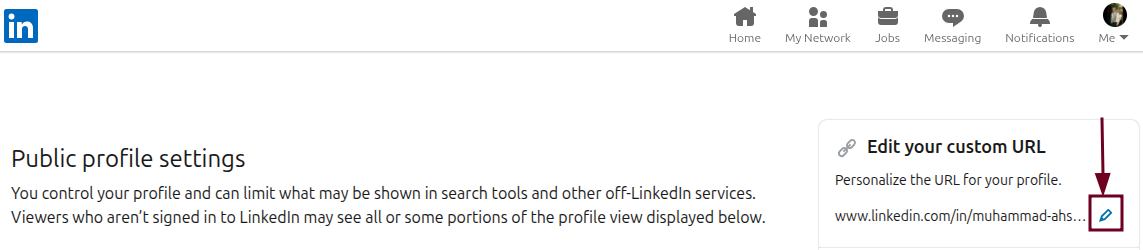
Step #06: Click the Edit (pencil) icon
Click the small pencil icon right next to your current URL to unlock the text field and make it editable.
Step #07: Type the new desired URL
Delete the existing URL text and type in your new custom URL, i.e., your full name or a clean, professional variation. It works best here.
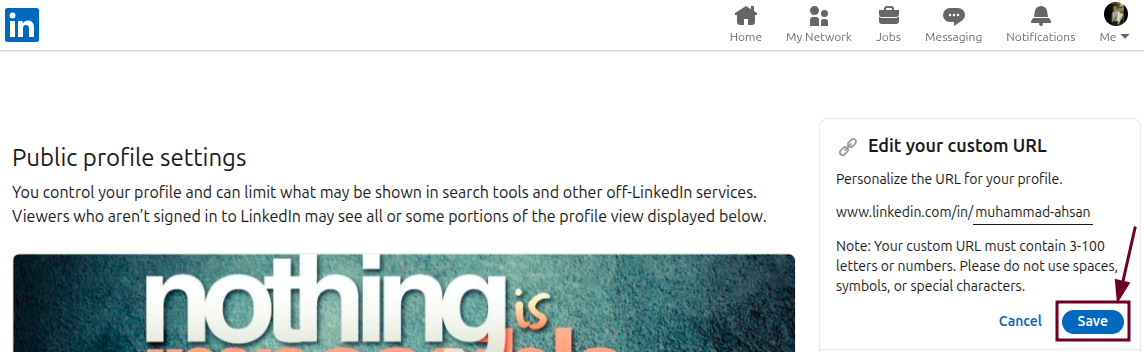
Step #08: Click “Save”
Once you’ve entered your new URL, click the “Save” button, and you’re all done! Your updated LinkedIn URL is now live and ready to go.
Also read: How to change a URL of any website?
Customized LinkedIn URL examples
Not sure what to put as your custom LinkedIn URL? You’ve got more options than just your name. Here are some popular formats to help you pick one that fits your personal brand perfectly.
Simple Name
The most straightforward option. Just use your first and last name. Clean, professional, and easy to remember.
👉 linkedin.com/in/ahsan-jamal
Initials + Last Name
If your full name is already taken, try using your first initial combined with your last name.
👉 linkedin.com/in/ajamal
Name + Job Title/Specialization
Great for standing out in your field. Pairing your name with your role tells people exactly what you do before they even click your profile.
👉 linkedin.com/in/ahsanjamal-contentmarketer
Name + Industry
If you want to highlight the space you work in rather than a specific title, adding your industry works really well.
👉 linkedin.com/in/ahsanjamal-marketing
Name + Company
Ideal if you’re closely associated with a well-known brand or want to reinforce your current professional identity.
👉 linkedin.com/in/ahsanjamal-d4interactive
Professional Certification/Suffix
Have a well-recognized credential like an MBA, CPA, or PhD? Adding it to your URL is a subtle but effective way to establish authority instantly.
👉 linkedin.com/in/ahsanjamal-mba
Why can’t I change my LinkedIn profile URL: Troubleshooting common errors
Running into trouble while trying to update your LinkedIn URL? You’re not alone! It’s actually more common than you’d think. Here are the most frequent reasons it happens and how to fix them quickly.
Common reasons for URL change failures:
- The desired URL is taken: LinkedIn URLs are unique, so if someone else has already claimed the URL you want, you simply won’t be able to use it. Try adding a middle initial, a number, or a slight variation to work around this.
- Character limits & constraints: LinkedIn only allows between 3-100 characters in your custom URL, and it must contain only letters, numbers, or hyphens. No spaces, symbols, or special characters allowed.
- Too many changes: LinkedIn doesn’t let you change your URL an unlimited number of times. If you’ve been editing it back and forth frequently, the platform may temporarily restrict further changes.
- The 180-day rule: If you’ve recently changed your URL, you may need to wait up to 180 days before you can change it to a previously used URL again. So choose wisely before hitting save.
Troubleshooting steps:
- Use unique variations: If your preferred URL is taken, try mixing in your middle name, initials, profession, or a relevant keyword to create a unique URL alternative that still feels on-brand.
- Clear cache or change browser: Sometimes the issue is just a browser glitch. Clear your cache and cookies, or switch to a different browser, and try making the change again.
- Check for “profile not found”: After saving your new URL, paste it into your browser to make sure it actually loads your profile correctly. Occasionally, there’s a short delay before it goes live.
- Verify the URL: Double-check that your new URL doesn’t have any typos, extra spaces, or unsupported characters before saving. A small mistake can cause the whole thing to fail silently.
Shorten your LinkedIn URL in seconds using Replug!
Once you’ve got your custom LinkedIn URL ready, why not take it a step further?
Replug is an all-in-one link management platform that lets you shorten, track, and manage your links, all from one single dashboard.
Its reliable URL shortener feature is especially handy for professionals who want a super clean, branded short link that’s even easier to share than a standard LinkedIn URL.


Instead of sharing a long URL, Replug lets you generate something short, sharp, and fully customized within seconds.
No matter if you’re adding it to your professional bio, resume, or business card, a Replug short link just looks that much more polished and composed.
Wrapping up
And that’s really all there is to it!
Changing your LinkedIn URL takes just a few steps, whether you’re on your phone or sitting at your desktop, and the difference it makes to your professional image is totally worth it.
A clean, custom URL makes you easier to find, easier to remember, and just looks a whole lot more refined everywhere you use it.
Pick a format that fits your personal brand, avoid the common pitfalls we covered, and don’t forget to shorten it further with Replug for that extra professional touch.
Now go update that URL, your profile deserves it!